 DuoShell
Help
Everything you need to get from "I have a server" to "tap and I'm in". Each guide shows DuoShell on iPhone and on iPad; they work the same way on both.
1. Add your first server
Have your server's address, its username and its password ready. A hosting company usually emails these when you create a server.
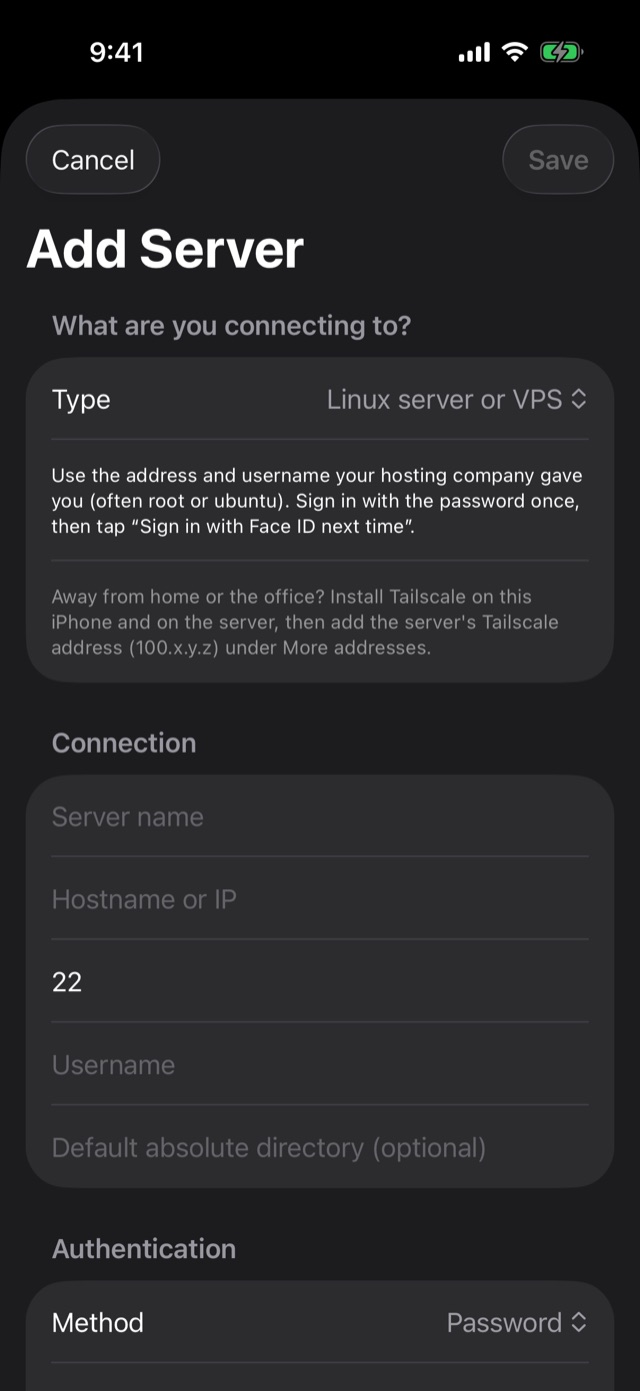
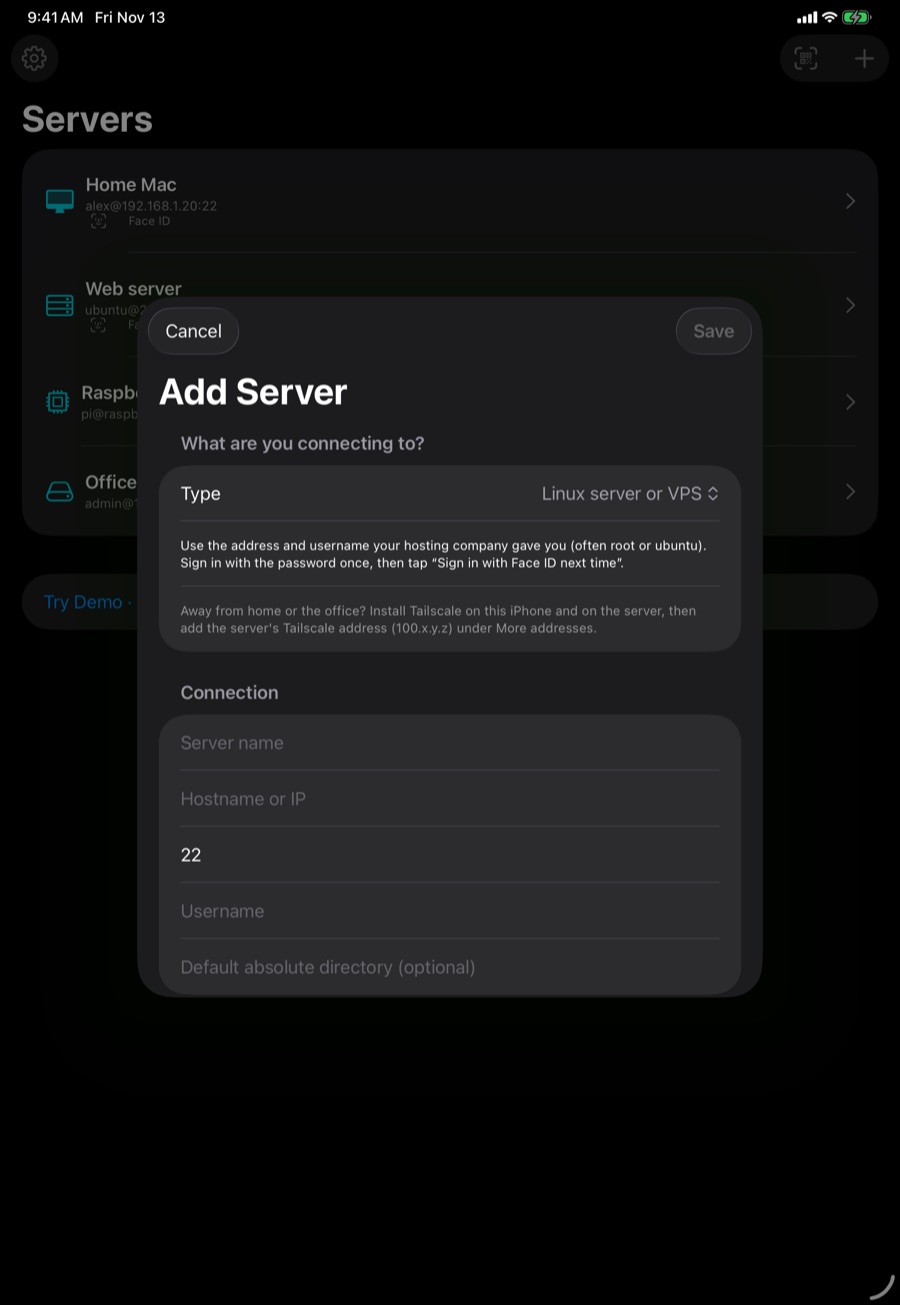
- Tap + (top right) or Add Server.
- Under What are you connecting to?, pick Mac, Linux server or VPS, or Raspberry Pi or home server. DuoShell shows tips for that kind of machine.
- Enter a name you'll recognize, the hostname or IP address, the port (usually 22) and the username.
- Type the password now and turn on Save password on this device, or leave it blank and DuoShell will ask each time.
- Tap Save, then tap the server and Connect. The first time, DuoShell shows the server's fingerprint and asks you to trust it.
.local (or its IP address) and your Mac account's short name.2. Sign in with Face ID (no Mac needed)
After you've connected once with a password, DuoShell can switch that server to Face ID.
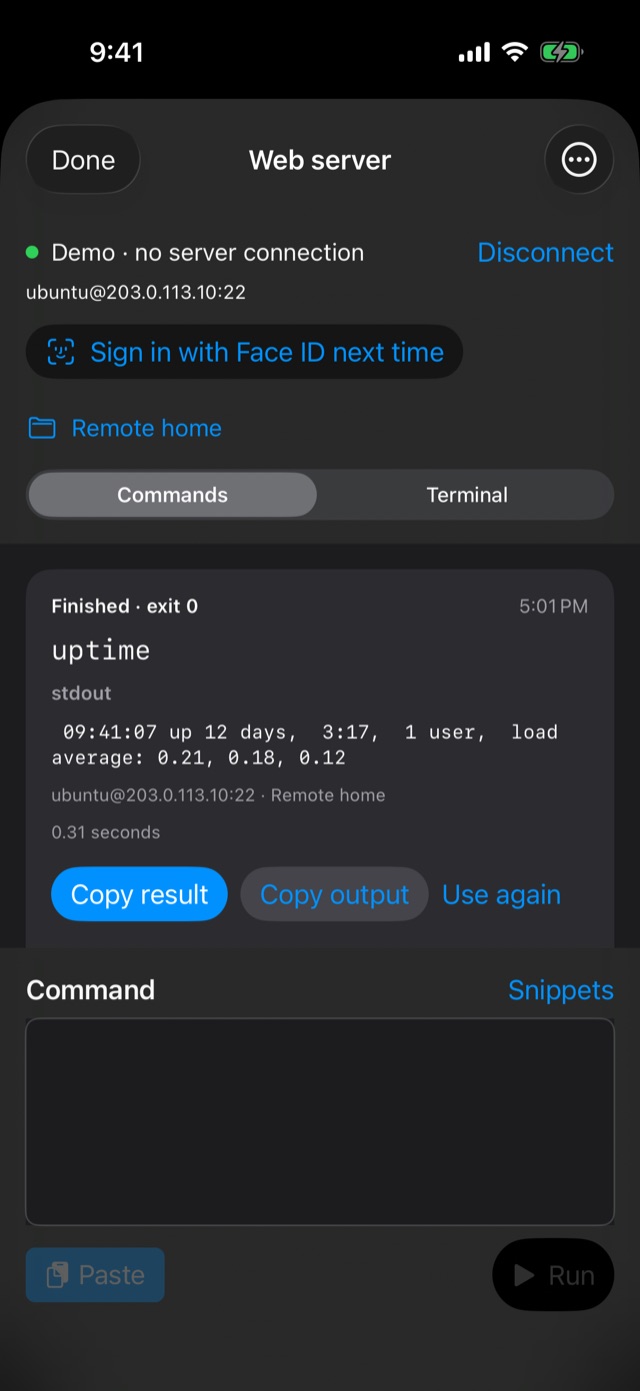
- Connect to the server with its password.
- Tap Sign in with Face ID next time.
- DuoShell adds this iPhone's key to the server, then asks for Face ID once to prove the key works on a fresh connection.
- When it says the server now signs in with Face ID, you can let DuoShell forget the saved password.
From then on, tapping the server in the list connects right away: one Face ID, no password. If anything goes wrong during setup, your password keeps working and DuoShell shows the key line so you can add it yourself.
3. Pair with your Mac
If your Mac can already reach your servers over SSH, pairing puts your phone's key on all of them at once, including servers that don't use passwords.
- On the Mac, open DuoShell Pair from the menu bar. Check the servers you want (use Add from SSH config… for more).
- Click Pair a phone. A QR code appears.
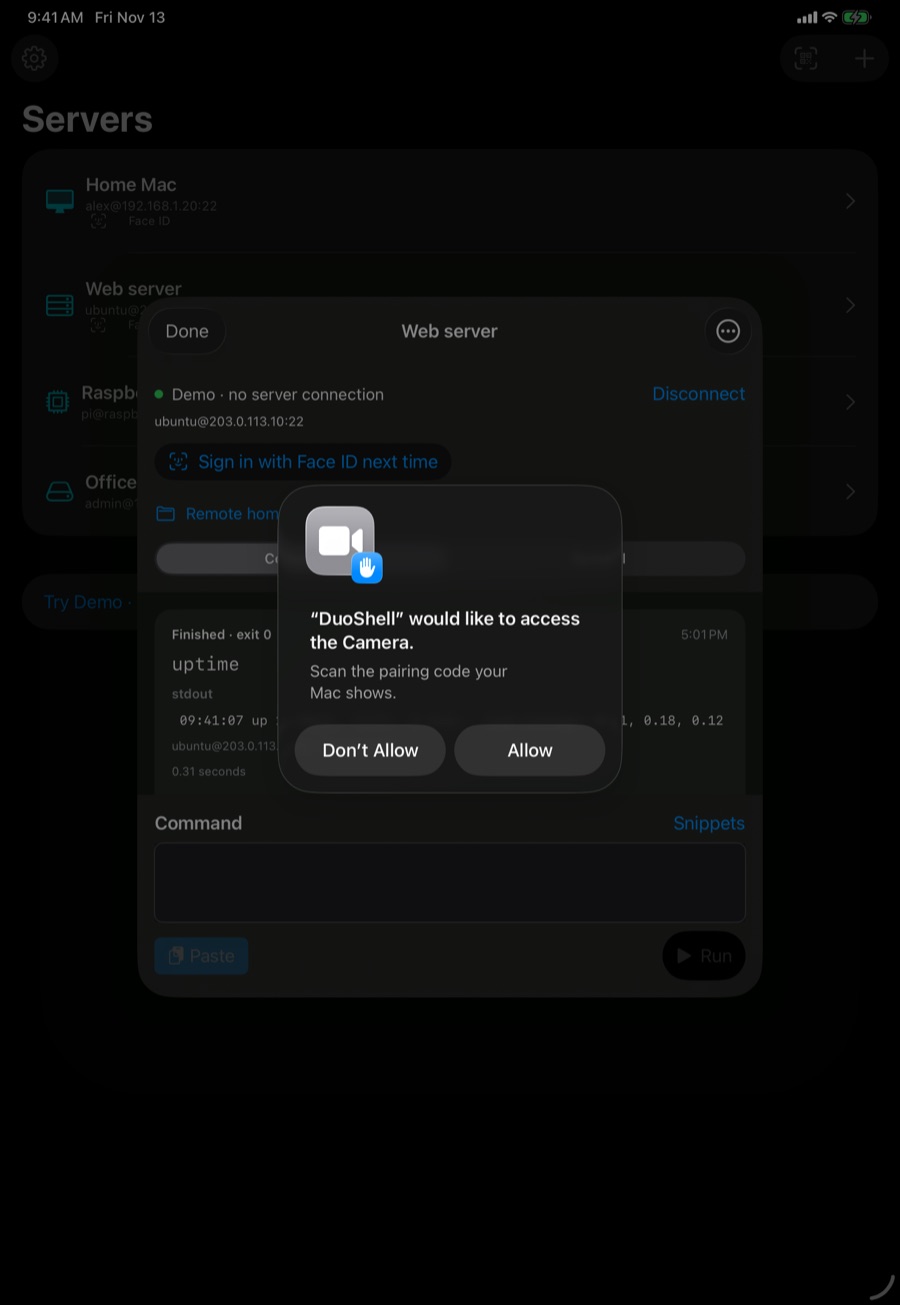
- On your iPhone or iPad, tap the QR button at the top of the server list (Pair with Mac) and scan the code. If iOS asks to find devices on your local network, tap Allow.
- Approve any 1Password prompts on the Mac. When it's done, your servers appear in DuoShell with a Face ID badge.
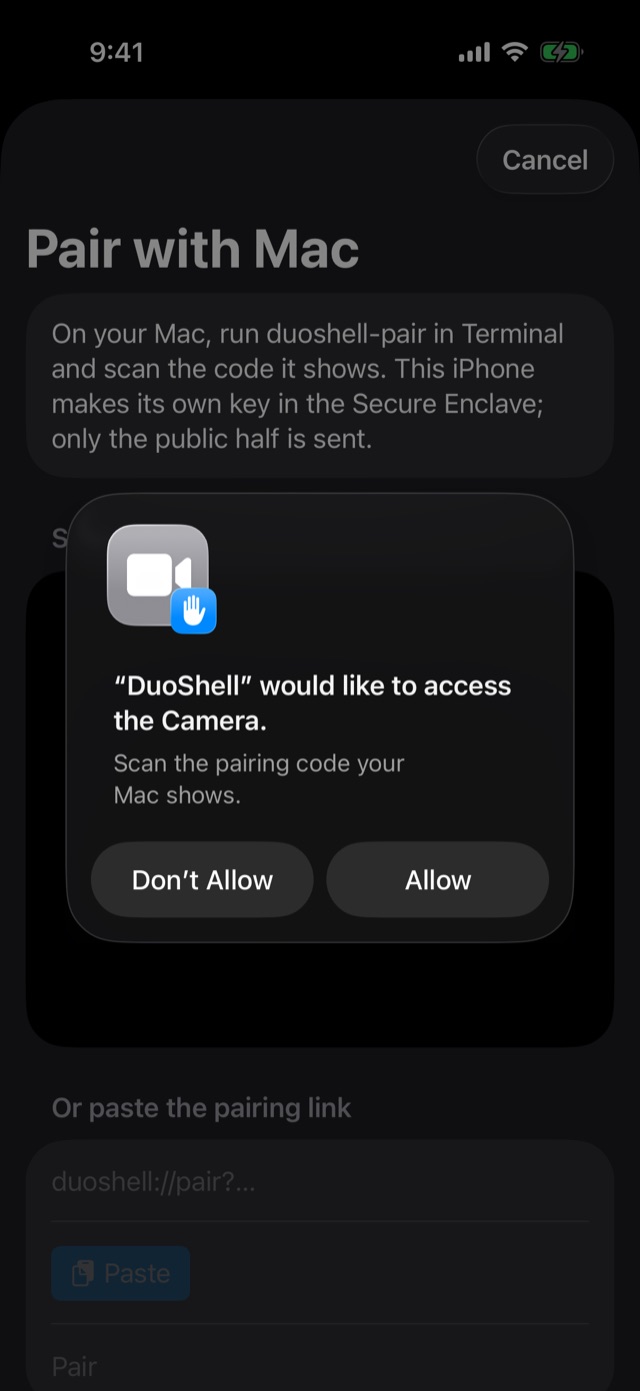
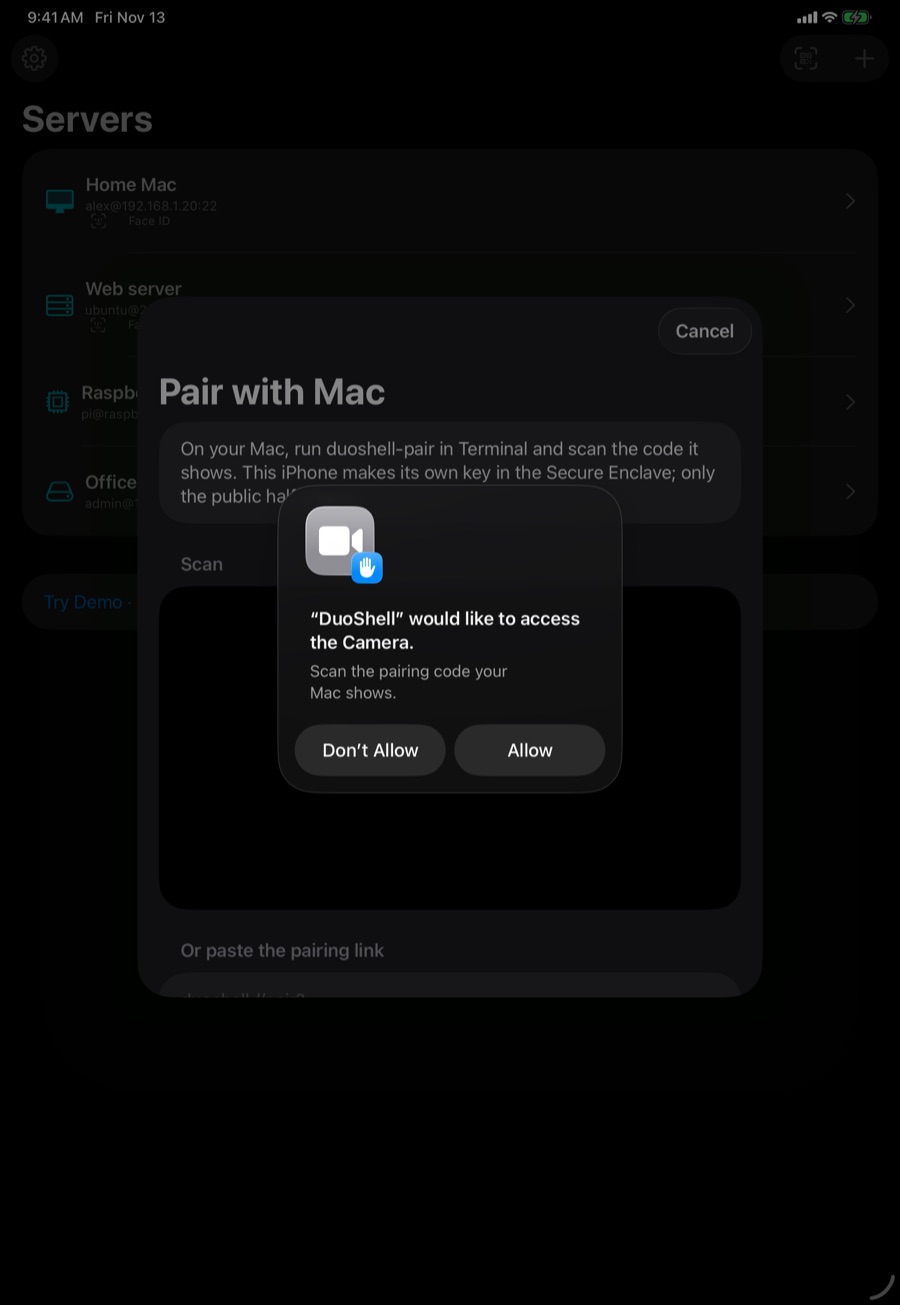
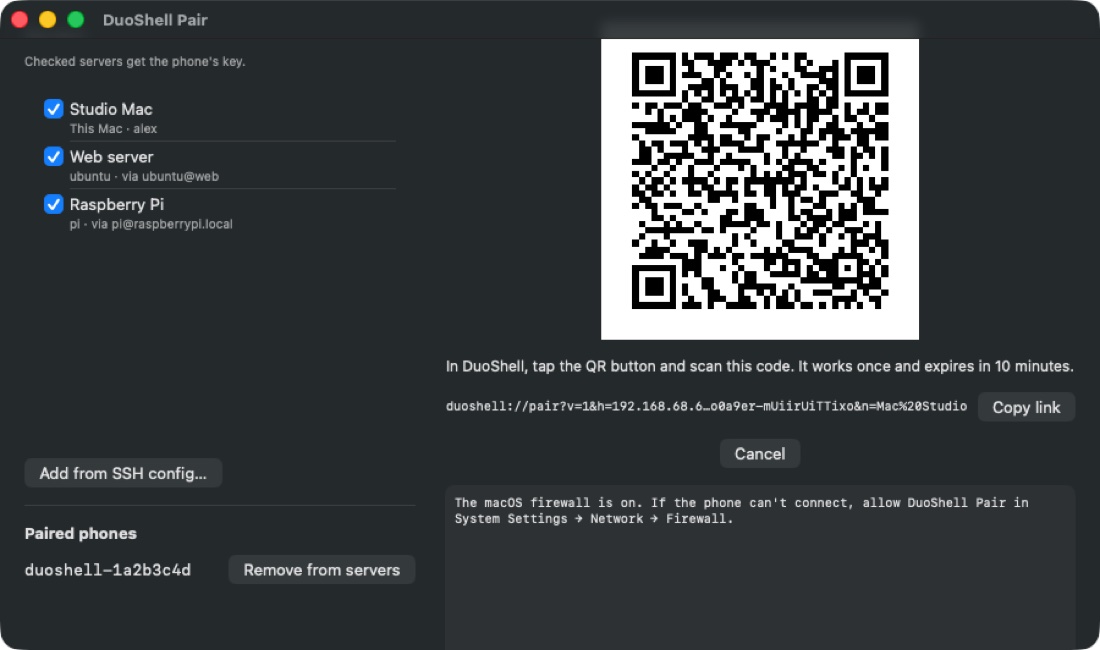
- The phone and the Mac must be on the same network while pairing. After that, they don't need to be.
- The code works once and expires after 10 minutes. Everything sent during pairing is signed with it, so nothing else on the network can join in.
- No camera? Click Copy link on the Mac, send it to your phone (for example with Universal Clipboard), and paste it into Or paste the pairing link.
4. Run commands and copy results
The Commands tab is built for pasting a command, running it and copying the result.
- Tap Paste (or type, or choose from Snippets).
- Tap Run. The result appears as a card with its output, exit status and timing.
- Tap Copy result for everything, Copy output for just the text, or Use again to run it once more.
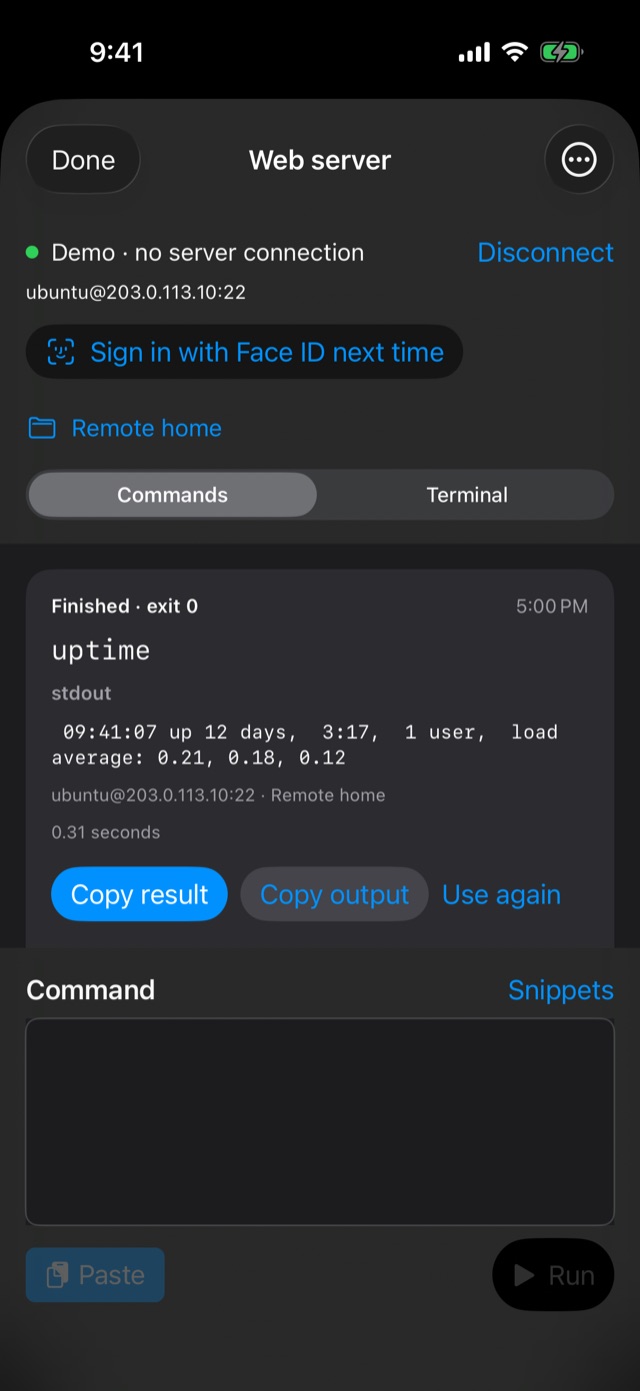
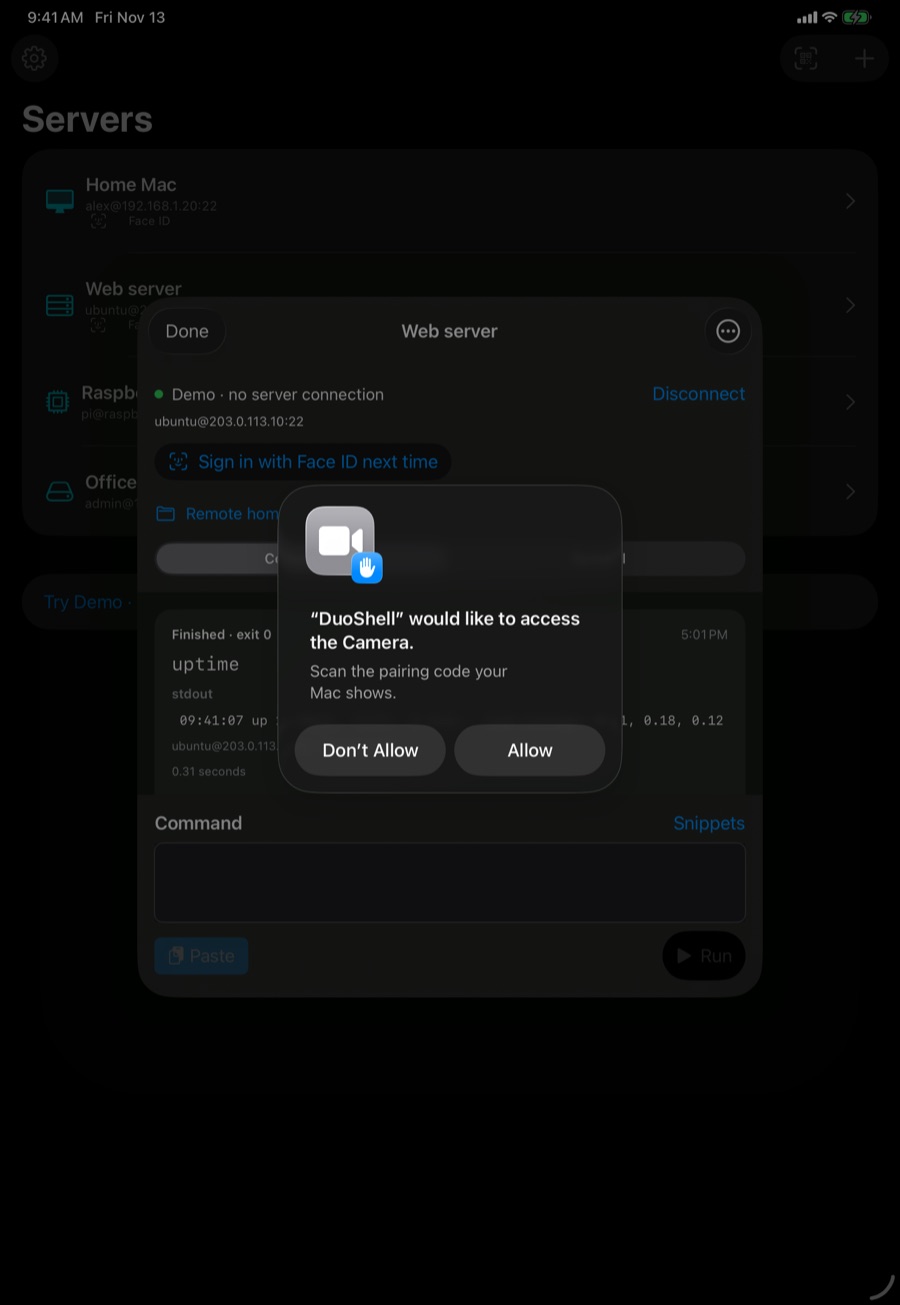
Each run starts a fresh /bin/sh without typing input, so cd in one run doesn't carry to the next; set a run directory with the folder button instead. Each server keeps its last 30 runs (up to 2 MB of output each) on this device. For interactive programs or anything that asks a question, use the Terminal.
5. Use the Terminal and keep sessions alive
Switch to the Terminal tab for a full interactive shell: editors, top, prompts and anything else.
To keep your work safe from dropped connections, open the server's ⋯ menu → Edit Server → Advanced and turn on Keep my terminal session alive (tmux). DuoShell then joins the same tmux session every time, so after a reconnect you're right where you left off. It needs tmux on the server (brew install tmux on a Mac, sudo apt install tmux on Ubuntu); without it you get a normal shell and a short note.
6. Connect when you're away
Addresses like 192.168.1.20 or mac.local only work on that network. To reach a home or office machine from anywhere, we recommend Tailscale: install it on the machine and on your iPhone, signed in to the same account.
- Find the machine's Tailscale address (it starts with
100.). - In DuoShell, open Edit Server → Advanced → More addresses and add it.
DuoShell tries the main address first, then each extra address in order, and checks the server's identity on every one. Servers set up with Pair with Mac get the Tailscale address added automatically when the Mac uses Tailscale.
7. When the connection drops
Switching from Wi-Fi to cellular, a tunnel or a long sleep can end a connection. DuoShell shows Connection lost with a Reconnect button. One tap (and one Face ID) brings you back. It never reconnects by itself, so you won't get surprise Face ID prompts.
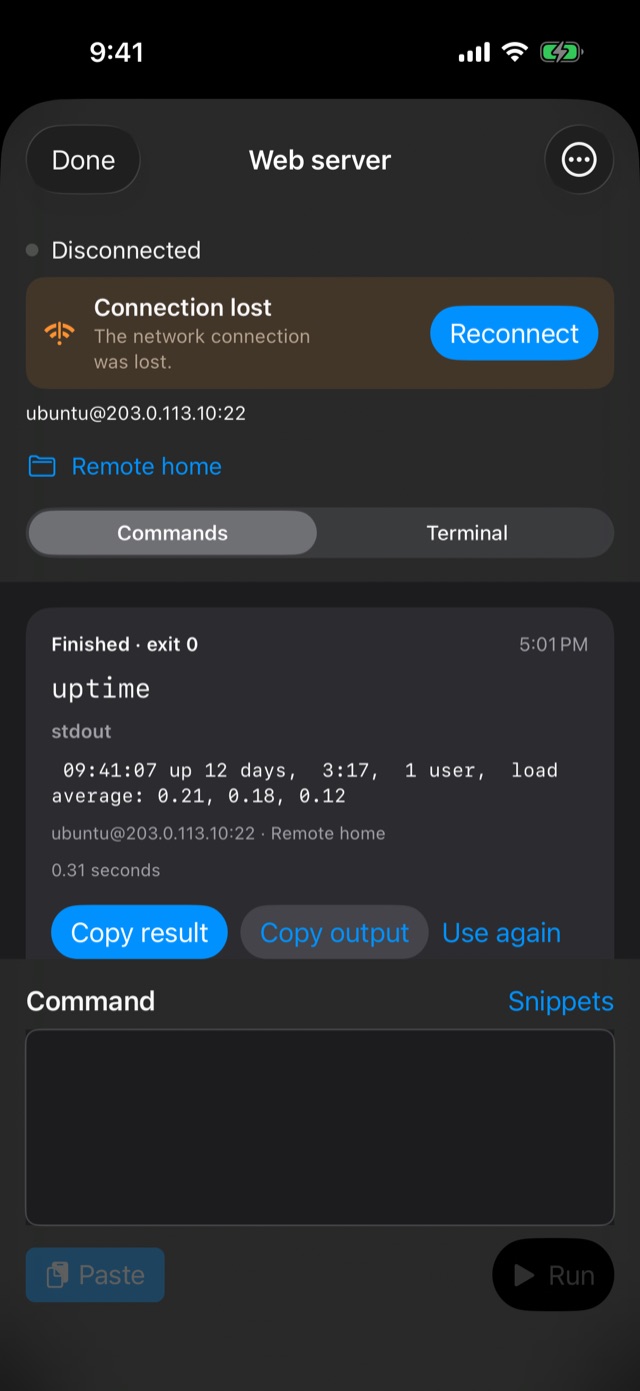
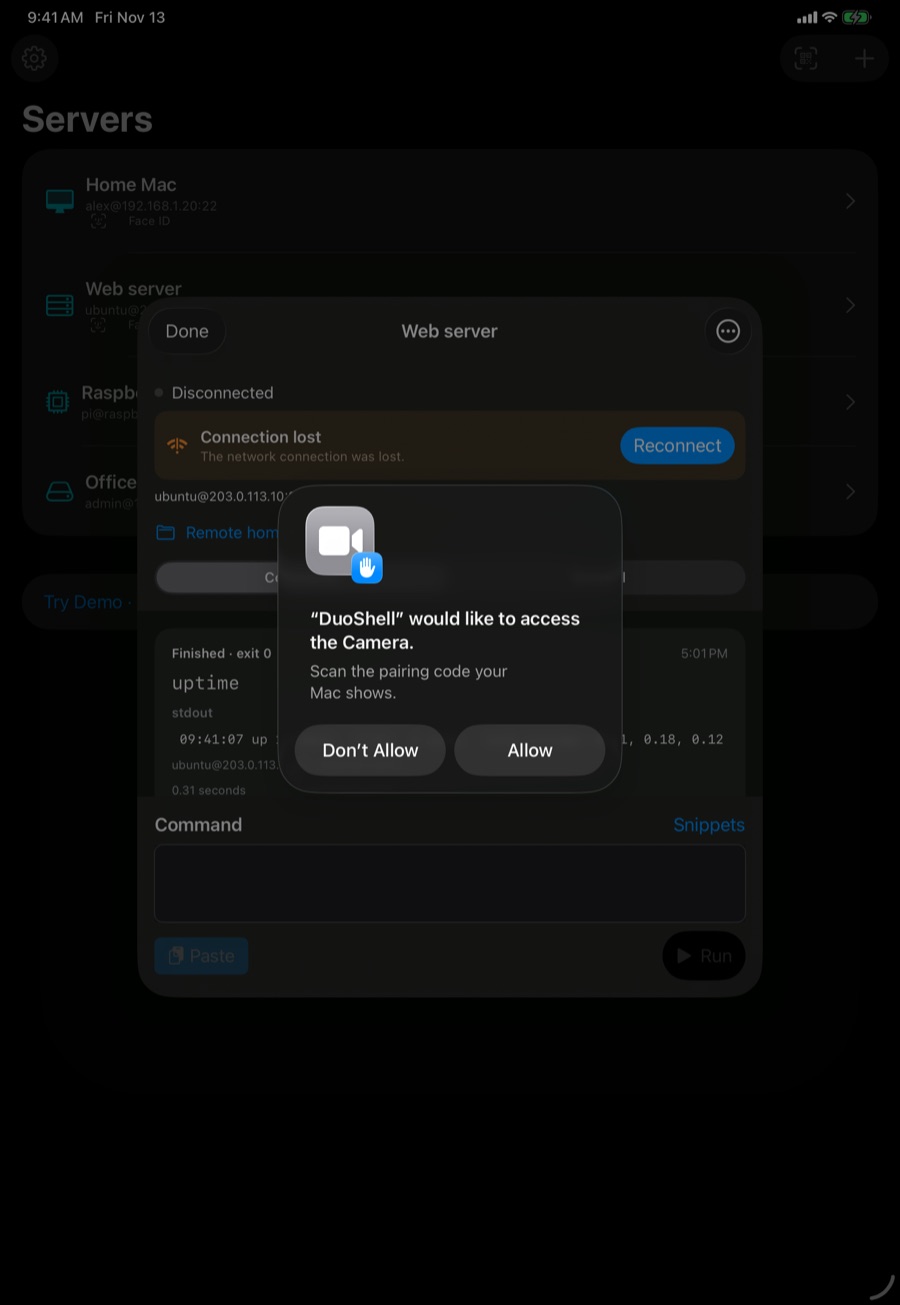
A command that was running when the connection dropped is marked outcome unknown: it may still have finished on the server. With tmux turned on, the Terminal picks up exactly where it was.
8. Your iPhone's key
Open Settings (the gear, top left) to see This iPhone's key. It lives in the iPhone's Secure Enclave, so it can't be copied off the device, and Face ID or your passcode unlocks it for each connection.
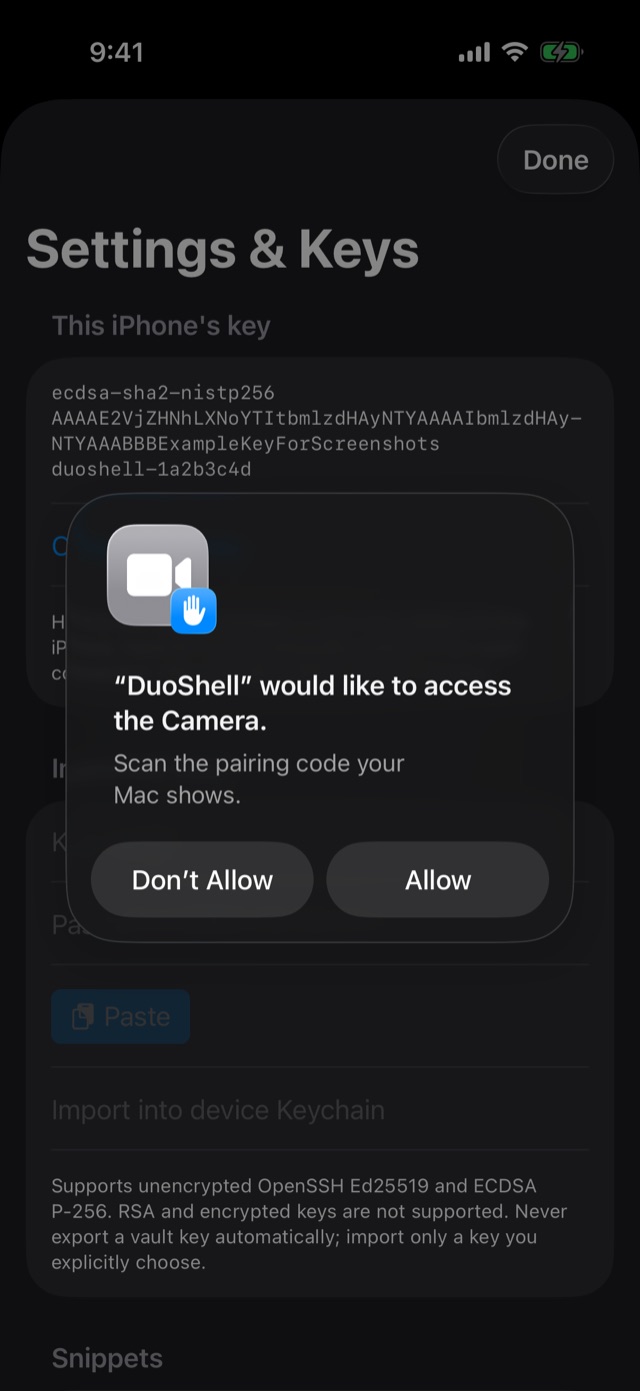
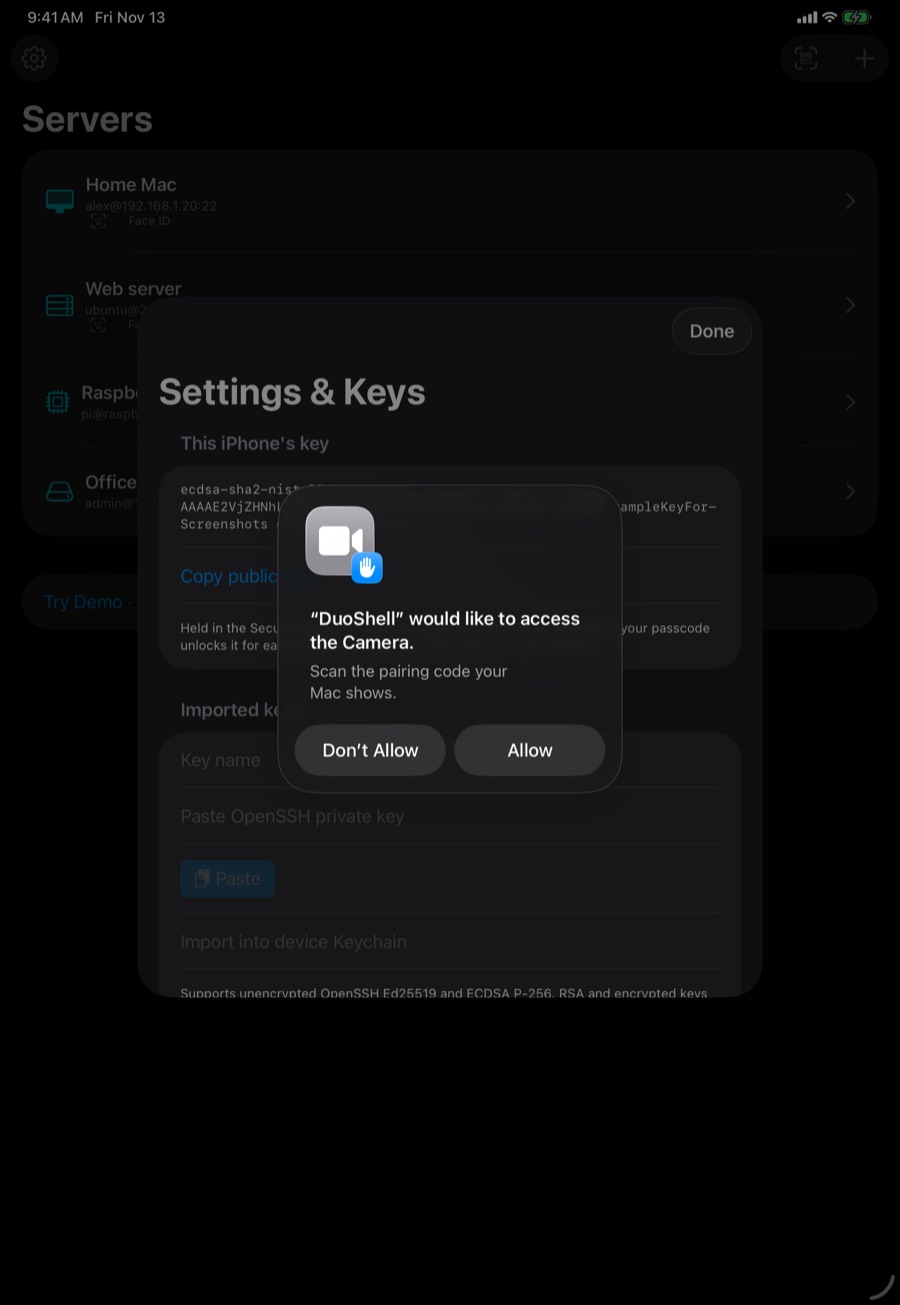
- Add it by hand: tap Copy public key and add that line to
~/.ssh/authorized_keyson the server. - Remove it from a server: connect, open the ⋯ menu and choose Remove this iPhone's key from the server. DuoShell then asks for the password next time.
- Lost your phone? In DuoShell Pair on your Mac, click Remove from servers next to that phone, or delete the line ending in its
duoshell-…name from each server'sauthorized_keys.
9. Using more than one device
Your server list and snippets sync between your iPhone and iPad through iCloud. Keys and saved passwords don't: each device has its own key. So on a new device, a synced server asks for its password the first time; from there, tap Sign in with Face ID next time (or pair that device with your Mac) and it signs in with its own key.
10. Troubleshooting messages
| DuoShell says | What it means and what to do |
|---|---|
| Nothing is accepting SSH on host:port | The machine answered but isn't running SSH on that port. Turn on SSH (on a Mac: Remote Login) and check the port number. |
| host:port didn't answer | Nothing responded. Check the address, that you're on the right network, or that Tailscale is connected. |
| Couldn't find host | The name couldn't be looked up. Check for typos. Names ending in .local only work on the same network. |
| Can't reach host from this network | You're on a different network. Add the machine's Tailscale address under More addresses. |
| The server didn't accept the key for user | This device's key isn't on the server (or was removed). Pair again, or connect with the password and set up Face ID again. |
| The server doesn't accept plain password sign-in… | The server has password sign-in turned off. Use Pair with your Mac or add your key by hand. |
| …only offers a sign-in method DuoShell doesn't support yet | The server requires keyboard-interactive or two-factor prompts. Use a key instead, as above. |
| …host key that doesn't match the one recorded for this server. Connection blocked. | The server's identity changed. That happens after a reinstall, but it can also mean something is wrong. Check with whoever runs the server before going further; then pair again or edit the server. |
| …key isn't on this device | The server was set up on another device. Choose Password in Edit Server, connect, then tap Sign in with Face ID next time. |
| Timed out reaching Mac (while pairing) | Put the phone on the same network as the Mac, allow DuoShell to use the local network (Settings → Privacy & Security → Local Network), and allow DuoShell Pair through the Mac's firewall. |
| The reply wasn't signed with this pairing code | The code expired or was for a different pairing. Click Pair a phone again on the Mac and scan the new code. |
Still stuck? Email support@duoshell.link with what you tried and the exact message.